
Whenever Nextflow runs, it creates .nextflow.log files that track everything it does. If you have multiple runs, Nextflow rotates their file suffixes: .nextflow.log.1, .nextflow.log.2 and so on. These are great for debugging failures, but they are very verbose; errors and warnings are often buried under hundreds or even thousands of lines of fairly irrelevant DEBUG messages. It’s difficult for newcomers to know where to look, and even for those more experienced with the format it’s a pain to dig through.
I've wanted a better way to read these Nextflow log files for years. After some early tests that never made it into a finished tool, I’m happy to say that we now have native log readers in both Nextflow itself and in VS Code, with the Nextflow extension. Both do essentially two things: apply syntax highlighting to make the log easier to read (using a TextMate grammar) and give you the ability to filter out different levels of log messages, so you can quickly drill down to just a few lines of warnings and errors.
View Logs on the Command Line: nextflow logfile
Where better to create a tool for viewing Nextflow logs, than in Nextflow itself? This new subcommand comes with Nextflow 26.05.0-edge onwards and can either be given a filename to read, a run name, or it automatically picks up the most recent log file in the current directory.
If you view a Nextflow log file with a tool such as less or cat then you will see a wall of text. The default usage of nextflow logfile shows exactly the same text, but formatted so that the lowest level log messages (TRACE and DEBUG) are dimmed and the highest have colored bands to highlight them (WARN and ERROR). The new Nextflow logfile Textmate grammar gives colors to different parts of the log to make it easier to skim-read and interpret. If the logfile is longer than the height of your terminal (it usually is) then Nextflow will use a terminal pager to let you scroll and navigate the file without filling your terminal output. If you compare viewing the same file with less versus nextflow logfile, the difference is clear:
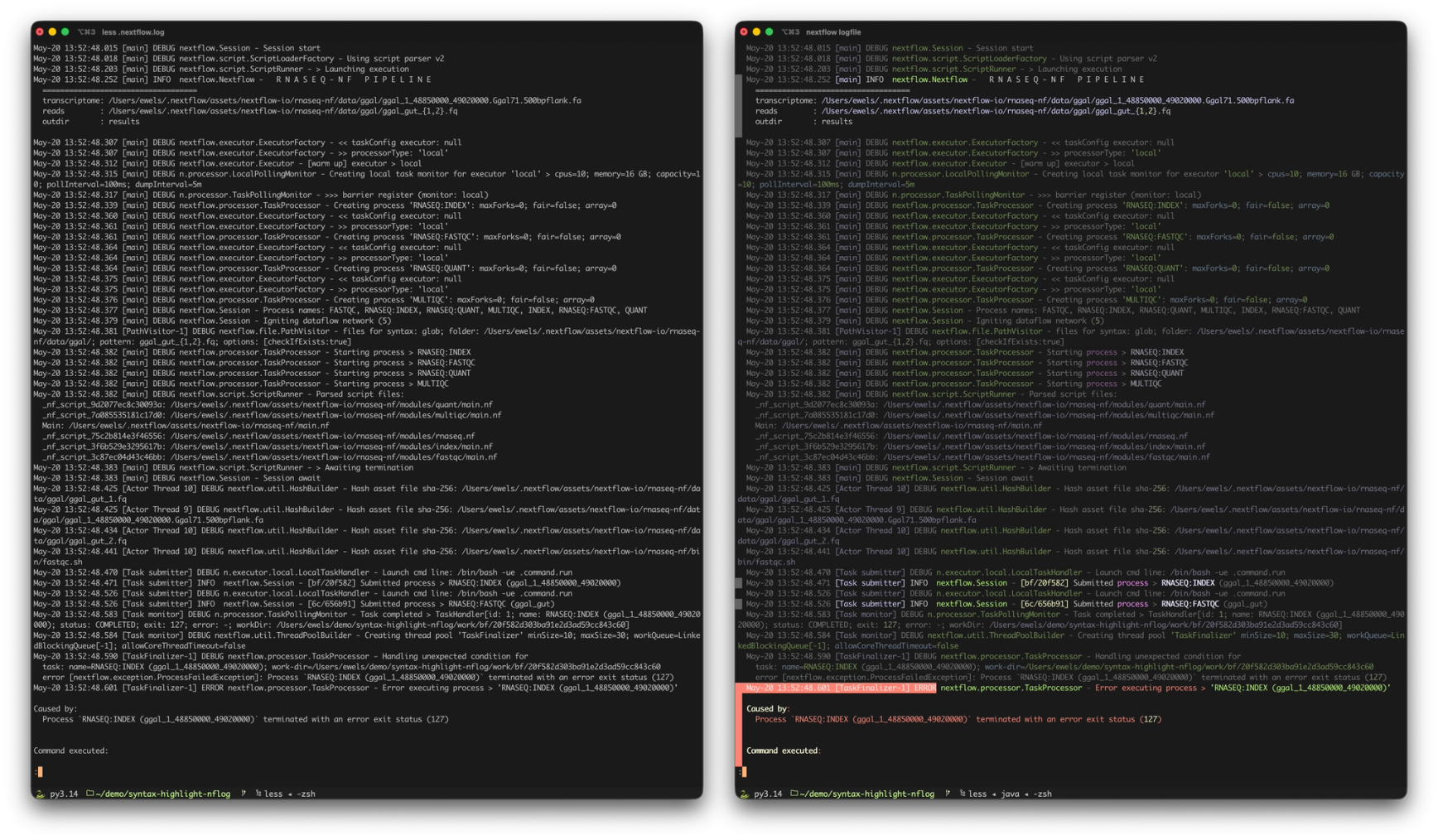
The logfile command also has a flag to completely filter out lines of a given log-level and below. For example, if you only want to see warnings and errors and want to hide all trace, debug and info logs you can use the following command:
This makes the output much shorter and easier to read (-level INFO should look pretty much the same as the Nextflow terminal output you see when running Nextflow). It’s also particularly useful for AI agents. Log files run to thousands of lines, and feeding all of that to an LLM burns through tokens and context; by filtering deterministically we avoid any of that reaching the model in the first place.
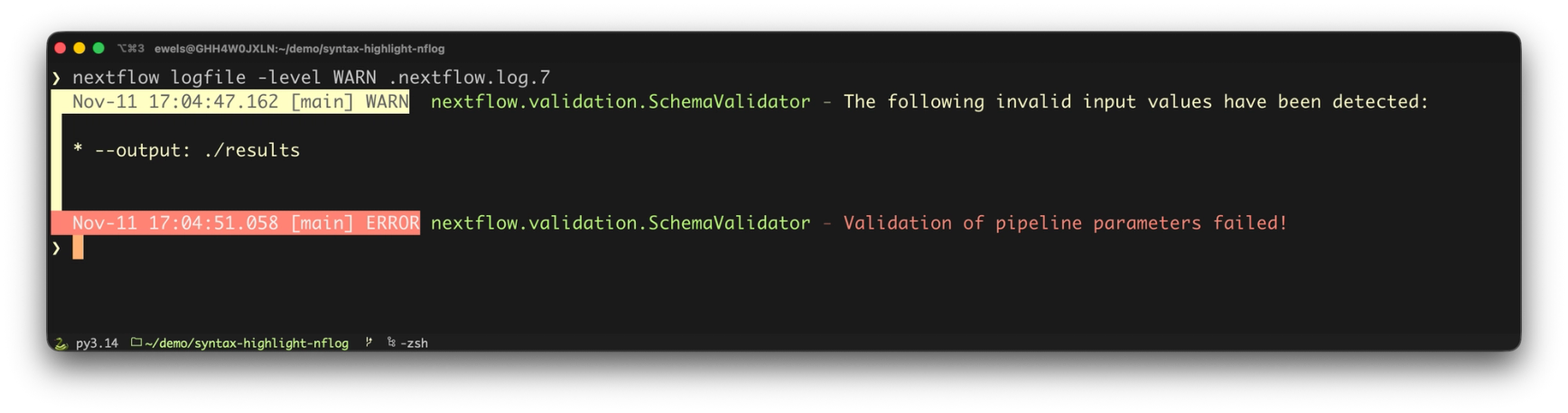
One more feature makes this new command particularly agent-friendly: when the nextflow logfile command detects that it isn't writing to an interactive terminal (tty) it drops all the color, paging and highlighting and emits plain filtered text. This can also be done using the -no-ansi flag or NO_COLOR environment variable, as with other Nextflow commands. You can filter for the -n last N log messages (note, not the same as number of lines of output as log messages can span multiple lines) and -f follows the file as it grows.
View Logs in VS Code
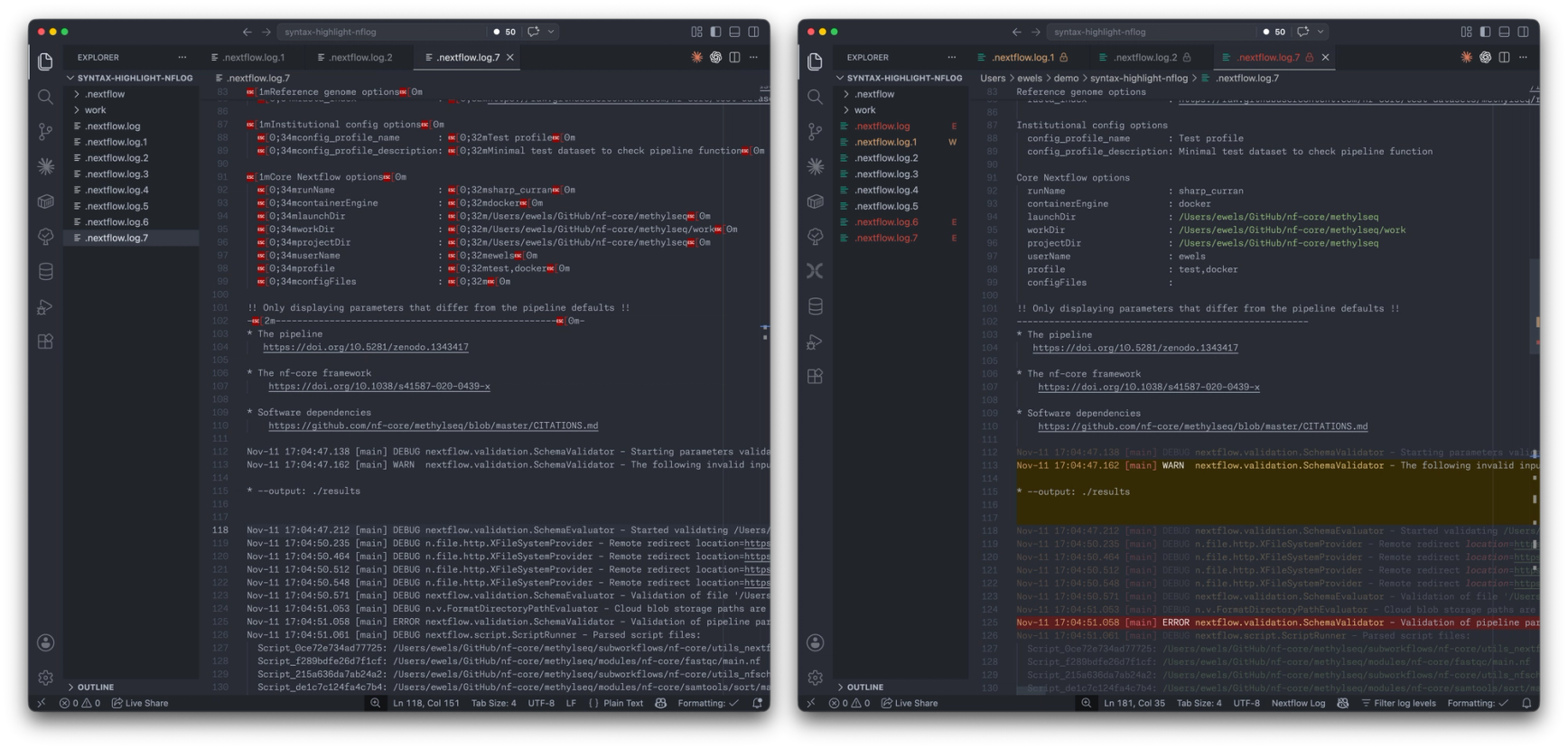
The terminal is a great place to start, but many of us live in our code IDE for a lot of development work. Nextflow log files naturally start stacking up there too so it made sense to bring this same rich viewing experience to the Nextflow VS Code extension. As of version 1.7.1, opening a Nextflow log file (detected by its filename) in VS Code does a few special things:
- →Logfiles have a custom icon in explorer, now with a nice Nextflow green color. The filename is colored yellow or red if it contains warnings or errors, together with a small W and E, so that you can jump right to the problematic file.
- →The file opens in read-only mode, with a little lock icon. You can flip into "raw" mode if you really need to edit it.
- →Logs are colored via the same TextMate grammar the CLI uses and also have the low opacity for
DEBUGandTRACElines. - →
WARNandERRORblocks get a full colored background, as well as a marker in the overview ruler on the right-hand scrollbar. - →ANSI escape codes are stripped by default, so nf-core pipeline logs don’t get ugly red
\x1b[33mcharacters.
As with the CLI, these tweaks make the log much easier to read:
You can filter out specific log levels via a button in the editor footer and a CodeLens on the first line, letting you toggle levels on and off. To do this in VS Code we had to swap the editor for a virtual read-only document on a custom nextflow-log-filtered: URI, which is why the file opens in read-only mode. The file on disk is not altered so filtering out lines is a non-destructive action.
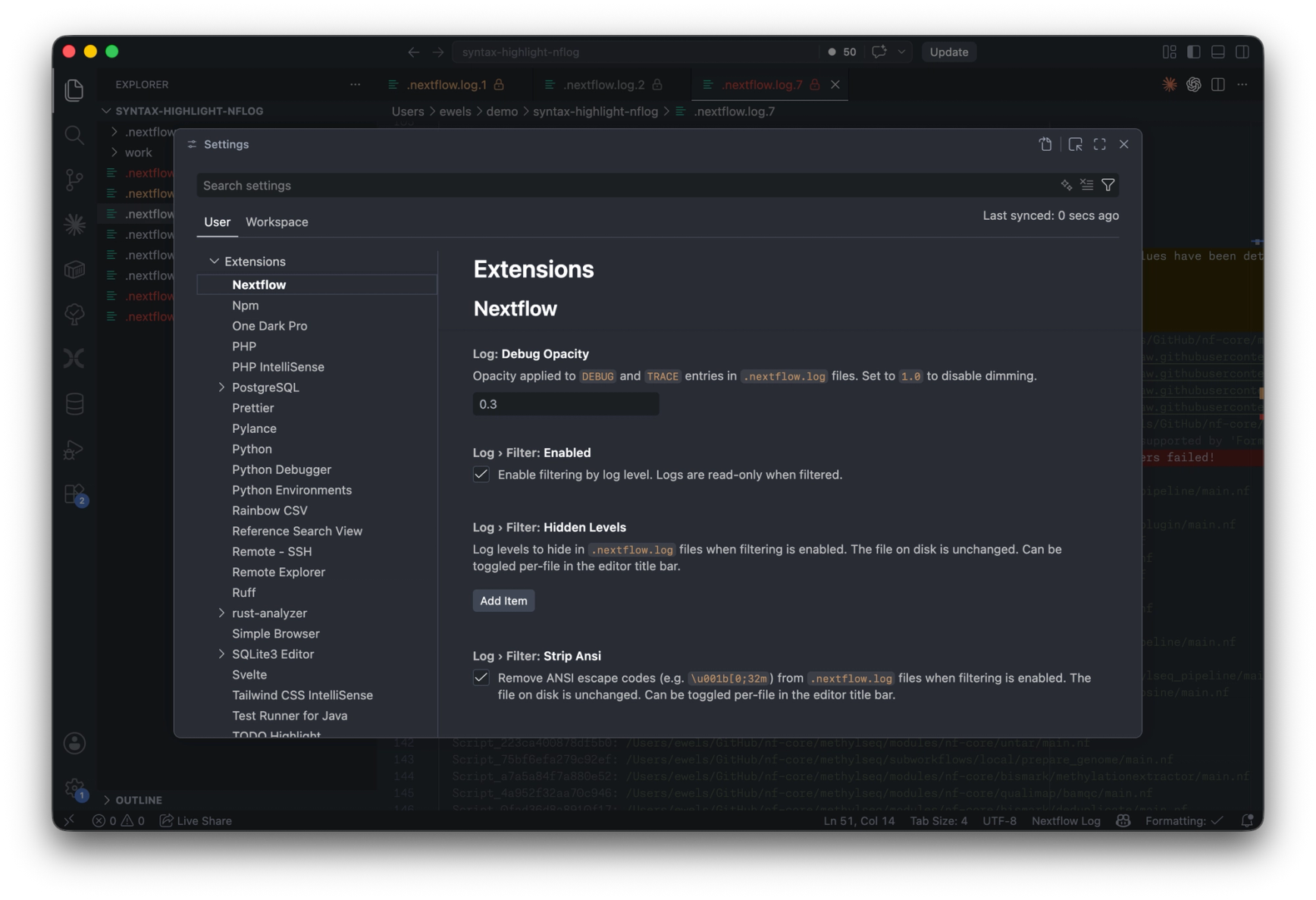
Customising log-level filtering via the menu
You can configure defaults for the log viewer in VS Code so that certain log levels are hidden by default every time you open a log file. This is done either via the menu items described above, saving the current setup to either your workspace (.vscode/settings.json) or your global VS Code settings. You can also customise the TRACE and DEBUG opacity here if you wish, set it to 1.0 if you don't want it dimmed.
Hopefully all of these small niceties make your debugging that little bit easier. Let us know if you have ideas for other features or tweaks!